
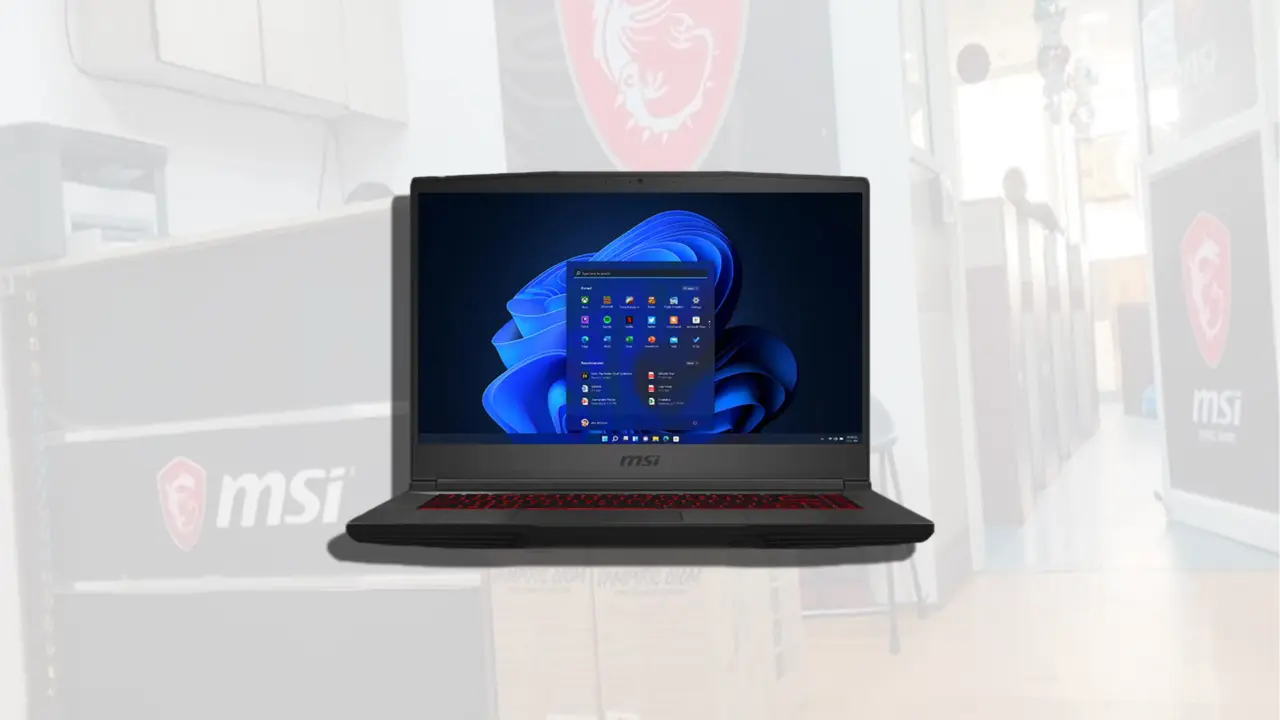
A recent dispute over an MSI GF65 Thin 10UE repair highlights a common point of confusion for gaming laptop owners. Users who experience a sudden drop in screen refresh rate after a service visit often assume their hardware was swapped with a lower-tier component. This assumption can lead to unnecessary accusations of fraud against authorized service centers. The reality usually involves a software configuration reset rather than a physical part replacement.
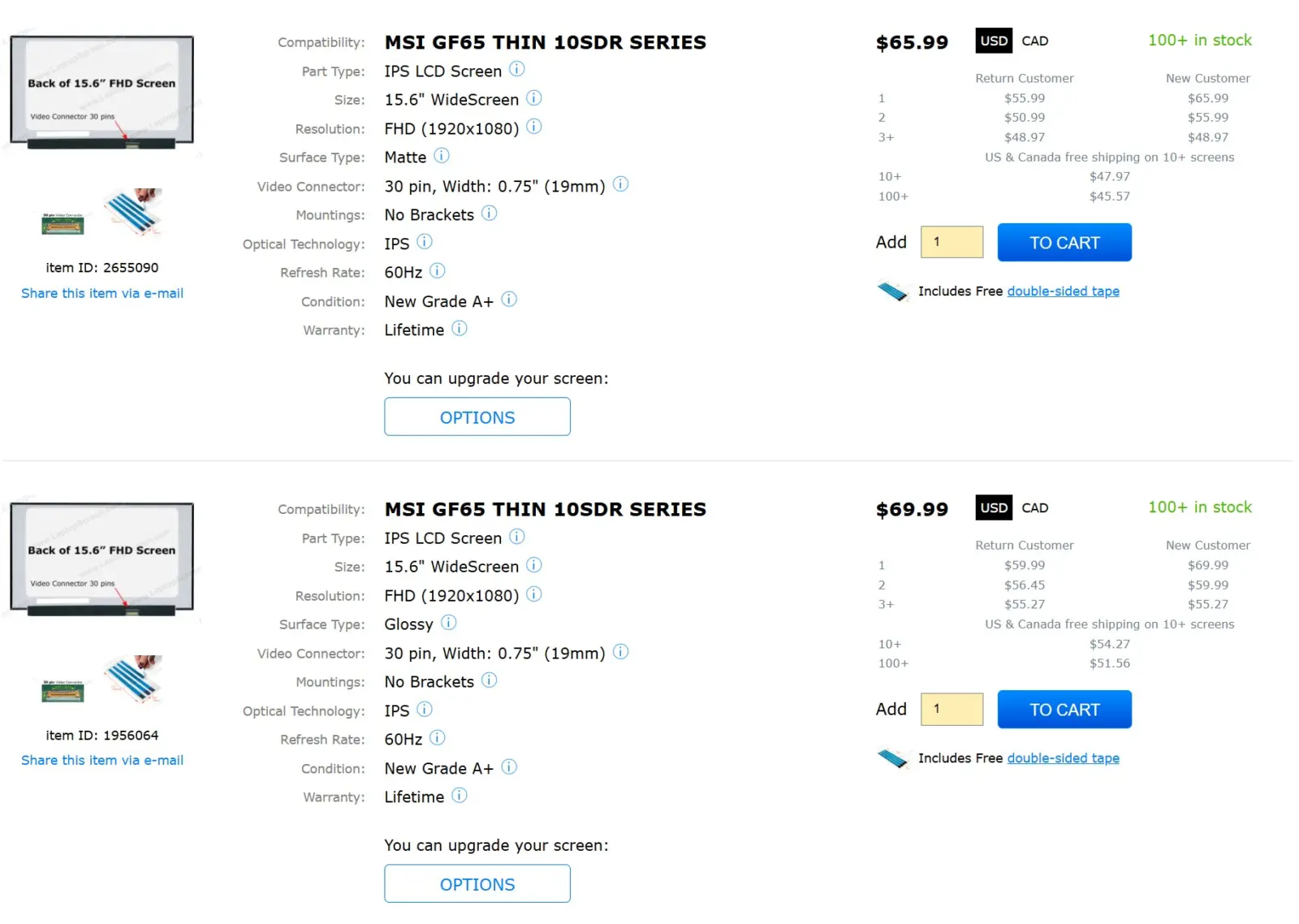
Physical connector differences make hardware swap impossible
The core of the controversy centers on the physical differences between display panels used in this laptop model. The original 144Hz screen utilizes a 40-pin eDP connector to handle the higher bandwidth requirements. In contrast, a standard 60Hz panel uses a 30-pin connector. These physical pin counts are fixed hardware specifications that cannot be altered without significant modification.
Because the connector pin counts differ, a direct physical swap between the 144Hz and 60Hz screens is technically impossible. An authorized service center cannot simply pull a 60Hz panel and plug it into a slot designed for a 40-pin interface. The hardware incompatibility makes the claim that the physical screen was replaced by a lower-spec version invalid from an engineering standpoint.
The likely cause of the reported issue is a software setting revert rather than a hardware change. Driver reinstalls or other service procedures often reset display settings back to their default state. Windows typically defaults to a 60Hz refresh rate to ensure stability after such changes. Users can manually restore the 144Hz setting through the display configuration menu.
Owners should check their advanced display settings to verify the refresh rate after any service visit. The fix involves selecting the correct refresh rate in the operating system rather than demanding a part replacement. This simple software adjustment resolves the discrepancy between the expected and actual performance.
Discussion
0 comments
Log in to join the thread with a thoughtful take, question, or correction.